
Introduction
Imagine effortlessly beaming your favorite movie, YouTube clip, or vacation photo slideshow from your iPhone, iPad, or Mac onto your TV screen. Sounds cool, right? That’s the magic of AirPlay! Whether you’re hosting a movie night, presenting a slideshow, or just want to enjoy your media on a larger screen, here’s everything you need to know about how to AirPlay to TV.
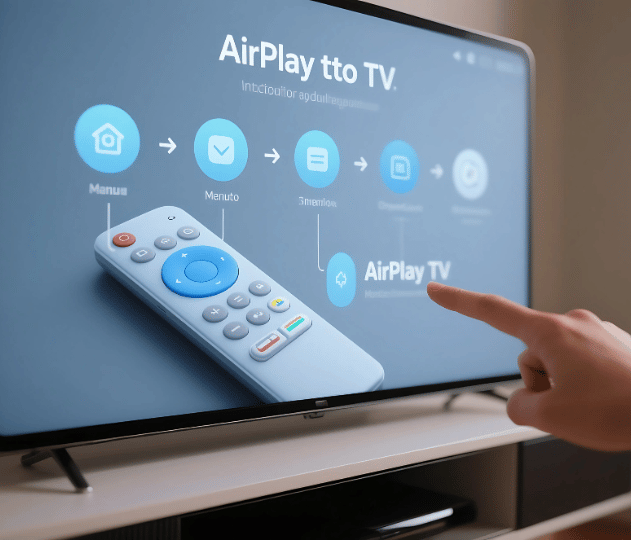
AirPlaying to a TV is a simple and convenient way to wirelessly stream content from your Apple device to a larger screen. On an iPhone or iPad, you can stream content by opening a video or app, such as Photos or YouTube, then tapping the AirPlay icon (a rectangle with an upward arrow) and selecting your TV from the list.
Sure! Here’s a simple and clear table that explains how to AirPlay to a TV from different Apple devices:
| Device | Steps to AirPlay to TV | Requirements |
|---|---|---|
| iPhone / iPad | 1. Connect iPhone/iPad and TV to the same Wi-Fi 2. Open the video or app 3. Tap the AirPlay icon 4. Select your TV | – AirPlay-compatible TV or Apple TV- iOS 4.2+ |
| iPhone / iPad (Screen Mirroring) | 1. Swipe down to open Control Centre 2. Tap Screen Mirroring 3. Select your TV | – AirPlay-enabled TV or Apple TV- Same Wi-Fi |
| Mac | 1. Click the Control Center in the menu bar 2. Click Screen Mirroring 3. Select your TV | – macOS Mountain Lion or later- Same Wi-Fi |
| Mac (Video Streaming) | 1. Play video in Safari or QuickTime 2. Click the AirPlay icon in the video player 3. Choose your TV | – AirPlay-compatible TV or Apple TV |
| Smart TV (No Apple TV) | 1. Make sure the TV supports AirPlay 2. Enable AirPlay in TV settings 3. Follow steps from iPhone/Mac above | – AirPlay 2-enabled TV (Samsung, LG, Sony, etc.) |
| Troubleshooting | 1. Check same Wi-Fi network 2. Restart both devices 3. Update software 4. Ensure AirPlay is enabled on TV | – Working Wi-Fi- Latest software on all devices |
How to AirPlay to TV?

AirPlay is Apple’s proprietary wireless communication protocol that allows audio, video, photos, and screen mirroring from an Apple device to an Apple TV, smart TVS, and speakers that support the feature. It works over Wi-Fi and offers seamless connectivity for Apple users. It’s like a digital bridge that links your small-screen device to a bigger display, giving you more immersive experiences for both entertainment and productivity.
AirPlay comes in two versions: the original AirPlay and the more advanced AirPlay 2. The latter supports multi-room audio, improved buffering, and compatibility with a broader range of smart TVS and speakers. If you want to mirror your entire screen, swipe down from the top-right corner to open Control Centre, tap “Screen Mirroring,” and choose your AirPlay-compatible TV.
Devices That Support AirPlay
Before diving into how it works, let’s make sure your devices are compatible. Not every TV or Apple device supports AirPlay, so knowing what works can save you some troubleshooting time.
Apple Devices
- iPhone and iPad running iOS 11.4 or later
- MacBooks, iMacs, or Mac Minis running macOS Mojave 10.14.5 or later
TVs and Receivers
- Apple TV (2nd generation and newer)
- Smart TVs with AirPlay 2 built-in (including select models from LG, Samsung, Sony, and Vizio)
- AirPlay 2-enabled audio devices and speakers (e.g., HomePod, Sonos)
- If you’re unsure whether your device supports AirPlay, a quick search of the model number on the manufacturer’s website should clarify.
AirPlay to TV from iPhone or iPad
It is simple and easy to use AirPlay from an iPhone or iPad. Here are the step-by-step instructions:
Open the Content You Want to Share
Whether it’s a YouTube video, a photo from your gallery, or a song on Apple Music, open the app and the content you’d like to share.
Press the AirPlay symbol
The AirPlay icon is a rectangle with a triangle at the bottom; look for it. It is typically found near the playback controls.
Choose Your TV or Device
From the list of available devices, select your Apple TV or AirPlay 2-compatible smart TV.
Enter Code (if prompted)
Your TV should start playing your music or video as soon as it is connected. Some apps also allow you to control playback (pause, rewind, volume) directly from your device.
How to Mirror Your iPhone or iPad Screen to a TV?
Want to share more than just video? Mirroring your entire screen is perfect for showcasing presentations, playing mobile games on a bigger display, or helping others navigate apps. To access Control Center on your smartphone, swipe down from the top-right corner.
Select “Screen Mirroring.” From the list of devices that support AirPlay, pick your TV. Your entire iPhone or iPad screen should now be mirrored to your TV.
How to AirPlay to TV from a Mac?
AirPlaying from a Mac is just as easy, whether you’re mirroring the entire screen or just streaming content from a specific app. Click the Control Centre icon (looks like two sliders) in the top-right corner of the menu bar. Click Screen Mirroring. If this is your first time connecting, enter the code shown on your TV.
Tips and Troubleshooting

AirPlay usually works smoothly, but if you run into hiccups, try the following:
- Wi-Fi Stability: Ensure your Wi-Fi network is strong and not overloaded. Weak connections can cause lags or interruptions.
- Update Your Devices: Regular updates ensure compatibility and performance.
- AirPlay Settings: On your TV or Apple TV, check AirPlay settings to ensure the feature is enabled. Navigate to Settings > AirPlay and HomeKit.
- Proximity Matters: Keep devices within a reasonable range of your router. Physical obstructions, such as walls, can impact signal strength.
Benefits of Using AirPlay for Everyday Use
Beyond simple streaming, AirPlay also improves the way users interact with digital content by turning small personal devices into powerful presentation and entertainment tools. In everyday situations, it can be used for more than just watching videos.
For example, teachers can share educational material directly from a Mac to a classroom display, while professionals can present slides or reports without needing cables or adapters. It also enhances accessibility by allowing users to enjoy content on larger screens with better visibility and shared viewing experiences, making it especially useful for family gatherings or collaborative work environments. This flexibility is what makes AirPlay not just a convenience feature but a practical solution for both personal and professional use.
Conclusion
AirPlay is like having a magic wand for your media. Whether you’re binge-watching Netflix, sharing photos, giving a presentation, or just enjoying a slideshow with family, AirPlay brings it all together on the big screen effortlessly, wirelessly, and without the need for extra cables or hassle. So go ahead, press play and take your screen time to the next level!
On a Mac, you can access screen mirroring by clicking the Control Centre in the menu bar and selecting “Screen Mirroring.” Choose your TV, and your Mac screen will display on it.
Read More: – Loft Conversion Cost: A Complete Guide to Pricing, Factors
Many smart TVS now support AirPlay 2, eliminating the need for an Apple TV device. If AirPlay doesn’t work, ensure all devices are on the same network, AirPlay is enabled on the TV, and the software is up to date.
Apart from that, if you are interested to know about “Headlight Glasses: The Ultimate Guide to Enhanced Night Vision” then visit our “Home Improvement” category.
FAQs
Yes, but with limitations. Peer-to-peer AirPlay allows streaming without being on the same Wi-Fi network, but both devices need Bluetooth and Wi-Fi turned on. It works best with Apple TV and certain models of ios devices.
Not at all! You can use AirPlay to stream music, share photos, mirror presentations, or even display live drawing from apps like Procreate.
You can purchase an Apple TV or use a compatible streaming device, such as Roku or Amazon Fire TV Stick, with the AirScreen app to enable AirPlay functionality.
Absolutely. You can use other apps or lock your screen while streaming audio or video content. For screen mirroring, anything you do will reflect on the TV.

